Roku-only app · iPhone & iPad

Roku Refuses Phone Remotes? It Is One Setting on the TV.

Open Settings on the Roku, then System, Advanced system settings, Control by mobile apps, and set Network access to Default. That setting is why a phone app can see your Roku and still be refused: on Limited the TV answers the app and accepts volume, typing and channel launches but refuses Home, Power, Play and the directional pad; on Disabled it refuses everything, including the app reading what the TV is. Only the TV's own remote or the buttons on the TV can change it. On Limited, Auxility Remote's keyboard, channel launching and volume still go through because the TV accepts them, and the full button set returns the moment the setting is Default.

A Roku that shows up in the app but ignores Home, Play and the arrows has its Network access set to Limited or Disabled. Only the TV's own remote or its buttons can change it, and the fix takes under a minute.

Download Free App
No 2-tap paywalls · No credit card · Basic controls free forever
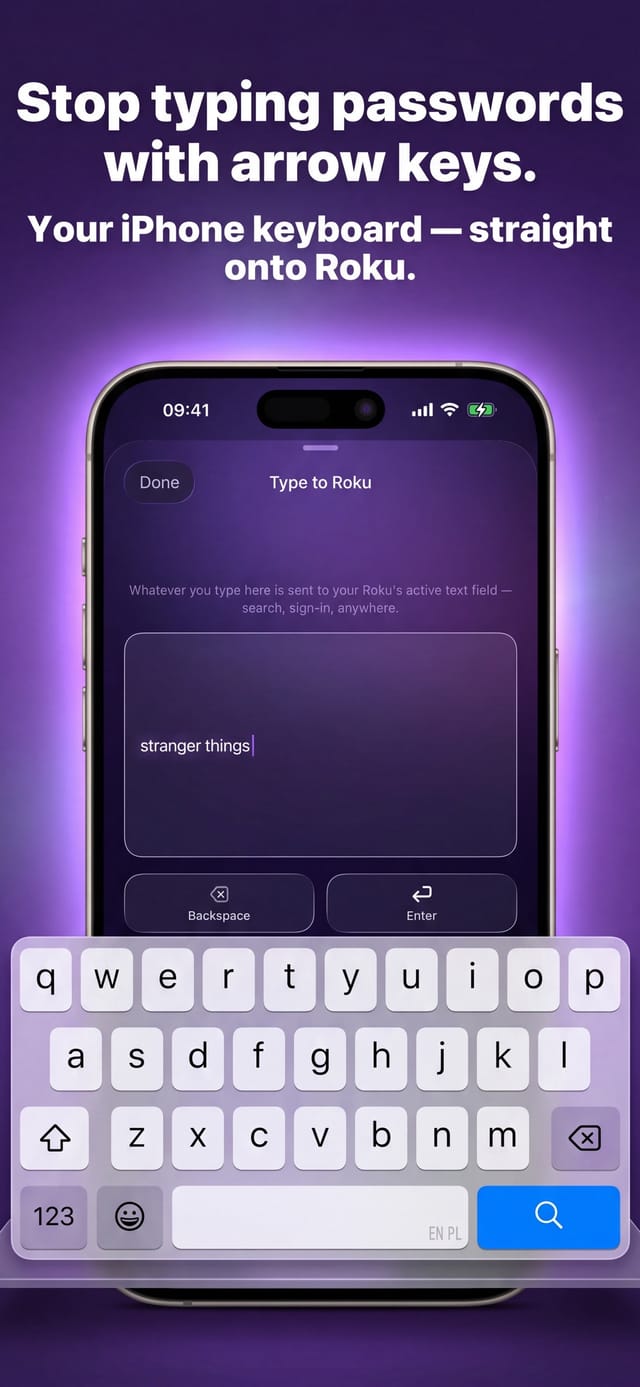
Auxility Remote for Roku TV — typing into a Roku search field from the iPhone keyboard

Free

Core controls

No pairing

Same Wi-Fi is enough

Which app this guide is for

This guide is for Auxility Remote for Roku TV, the Roku-only app by Auxility. It is not the universal app: My Universal TV Remote Control covers every TV brand in the house, Roku included, but keeps to the basics on Roku. Roku-deep features such as phone-keyboard typing into Roku search, voice search, Apple Watch control and the remote finder belong to the Roku app. For the universal angle, see Roku TV remote guides for the universal app and its free Roku remote app page.

This is the most common reason a Roku remote app "doesn't work" while the TV is plainly on the same Wi-Fi: among people using Auxility Remote, roughly one in three active users hits a refused command at some point. It is not a pairing problem and not a network problem. The Roku answers the phone, then declines the command because its owner, a software update or a factory default turned network control down. The four options behave differently, and knowing which one you are on tells you exactly what will and will not work.

Diagnosis

The four Network access options, and what each one lets a phone app do

Measured against the commands Auxility Remote sends. The TV's own remote is never affected by this setting.

OptionWhat the Roku accepts from an appWhat you see in the app
DefaultEvery command from devices on your own home network. The normal setting, and the one to choose.Everything works: arrows, OK, Home, Back, Play, Power, volume, keyboard, channels.
PermissiveEvery command, also from devices that are not on a private home address. Meant for unusual network setups, not needed at home.Same as Default. Choose it only if Default still fails on a network with an unusual layout.
LimitedAnswers the app and accepts volume, mute, keyboard typing and launching a channel, but refuses Home, Back, Power, Play and the directional pad.The Roku is listed and connects; volume and typing work; the navigation buttons do nothing.
DisabledNothing. The TV will not even tell the app what it is.The Roku may appear in the list and then fail to connect, or every button is refused at once.

Step by step

How to fix: Control by Mobile Apps

  1. Step 1

    Confirm it is the setting, not the network

    If the app lists your Roku, can change the volume or type into a search box, but Home and the arrows do nothing, the TV is on Limited. If it lists the Roku and then refuses to connect at all, it is on Disabled. A Roku that never appears in the list is a different problem, covered by the app-won't-connect guide.

  2. Step 2

    Pick up the TV's own remote, or use the buttons on the TV

    The setting cannot be changed from a phone, by design: an app that could switch it on for itself would make the setting meaningless. The physical remote or the panel buttons on a Roku TV are the only way in.

  3. Step 3

    Open Settings, System, Advanced system settings

    From the Home screen scroll to Settings, choose System, then Advanced system settings. Control by mobile apps is in that list on Roku TVs and on Roku players alike.

  4. Step 4

    Set Network access to Default

    Choose Control by mobile apps, then Network access, then Default. If your network is unusual and buttons are still refused afterwards, choose Permissive. You only need to do this once; the setting survives restarts.

  5. Step 5

    Press a button in the app

    Go back to the phone and press Home or an arrow. The refusal clears as soon as one of the previously refused buttons goes through; nothing needs to be re-paired because there was never a pairing.

Why volume works but Home does not

Limited is the confusing option, and it is confusing on purpose: it lets the Roku stay usable for the harmless things an app might do, such as turning the volume down or typing a password, while refusing the commands that change what is on screen. From the phone that looks like a half-broken remote. It is not; every refused button is being refused by the same rule, and every accepted one is on the allowed list.

That is also why a successful volume press proves nothing about the setting: only a button that was refused before, such as Home, going through shows the change took. Version 1.0.4 of Auxility Remote, prepared for release, uses exactly that rule, keeps the keyboard, channel launching and volume available instead of greying out the whole remote, and adds a Check again button; the App Store version reports the refusal as an error message.

How a Roku ends up on Limited or Disabled

Three common paths. Someone chose it, usually to stop children or guests driving the TV from their phones. A software update reset it, which owners report on Roku's forums after major OS versions. Or a used TV arrived that way from its previous home. None of these is visible from the phone, which is why the app has to explain the setting rather than just reporting an error.

The setting lives on the TV, not in your Roku account, so signing out and back in changes nothing, and reinstalling the app changes nothing either. The TV decides, and only the TV's remote or buttons can change its mind.

What the setting does not affect

The Roku's own remote, voice or infrared, is never governed by Control by mobile apps; it works the same on Disabled as on Default. Streaming from a phone with the Roku's built-in casting, screen mirroring to models that support it, and the official Roku app are all subject to the same setting, so if one phone app is refused, every phone app is refused.

Auxility Remote needs the phone and the Roku on the same Wi-Fi and the Roku on Default or Permissive. It cannot change the setting, cannot work around it, and does not pretend to. Showing this menu path inside the app when the TV refuses is part of version 1.0.4, prepared for release.

Where the setting lives, by device

  • Roku TV (TCL, Hisense, onn., Philips, RCA, Sharp, Westinghouse)

    Settings, System, Advanced system settings, Control by mobile apps, Network access. The TV's panel buttons only switch power and input (Roku TV user guide), so a Roku remote is needed to reach this menu; the phone cannot help until the setting is changed.

  • Roku streaming players (Express, Streaming Stick, Ultra)

    Same path. A player has no panel buttons, so the physical remote is the only way to change it. If that remote is lost as well, the lost-remote guide explains the replacement route, and Default must be set with a borrowed or new remote.

  • Roku on a guest, hotel or office network

    Default only accepts commands from private home addresses. If both devices are on an unusual network and Default still refuses, Permissive is the option Roku provides for that case.

What the app cannot do here

Auxility Remote cannot change Control by mobile apps, cannot read the current value before it tries a command, and cannot bypass a Disabled TV. What it does: after connecting it quietly tests one navigation button, and if the TV refuses it shows this menu path, keeps keyboard, channels and volume available, and offers a Check again button so you can confirm the change without guessing. That behaviour ships in version 1.0.4, which is prepared for release; the App Store version shows the refusal as an error message instead.
Technical reference

Control by mobile apps: the technical picture

What the TV does under each option, as measured by the app in the field.

Technical detail for this guide. You never need any of it to use the app; it is published so the page can be checked against the real behaviour of the device.
Detail Value
How a refusal looks to the app The Roku answers the request and refuses it, rather than staying silent. That is why a refused TV still appears in the device list: it is reachable, just unwilling.
Limited versus Disabled, as the app tells them apart On Limited the TV still answers the app's request for its name and model and refuses only the navigation keys. On Disabled it refuses that request too, so the app never learns what the TV is.
Commands accepted on Limited Volume up, volume down, mute, keyboard text entry and channel launch, as measured in the field. Home, Back, Power, Play and the directional pad are refused.
How the block is cleared Only a previously refused command going through, or the explicit Check again, clears it. A volume press is never taken as proof, because volume is accepted on Limited.
How often it happens About one in three active users of Auxility Remote hits a refused command (measured 2026-09-10), which made this the single largest support topic before the explainer was built.

Compatibility: Every Roku TV and Roku player with the Control by mobile apps setting: Roku TVs (TCL, Hisense, onn., Philips, RCA, Sharp, Westinghouse), Streaming Stick, Express, Ultra, Streambar.

Frequently asked questions

Control by Mobile Apps: questions people ask

Where is Control by mobile apps on a Roku?

Settings, then System, then Advanced system settings, then Control by mobile apps, then Network access. The same path applies on Roku TVs and on Roku streaming players. Choose Default. The option cannot be reached or changed from a phone app.

Why does my Roku app change the volume but nothing else?

Because the TV is on Limited. That option accepts volume, mute, keyboard typing and launching a channel from an app, and refuses Home, Back, Power, Play and the arrows. Set Network access to Default and the refused buttons work again immediately; there is nothing to re-pair.

Will Permissive make my Roku less safe?

Permissive accepts commands from devices that are not on a private home address, which Default refuses. On an ordinary home router Default is enough and Permissive adds nothing. Roku offers Permissive for unusual network layouts; use it only if Default still refuses the app on such a network.

Does this setting affect the official Roku app too?

Yes. Control by mobile apps governs every phone app that talks to the Roku over the network, including Roku's own. The TV's physical remote is the only thing it never affects, which is why that remote, or the buttons on the TV, are needed to change it.

Can Auxility Remote switch the setting back on for me?

No, and no app can. The setting exists so that a phone cannot grant itself control. Today the App Store version reports the refusal as an error; version 1.0.4, prepared for release, tells you which option the TV is on from the way it refuses commands, shows this menu path, keeps keyboard, channels and volume working on Limited, and confirms the fix with Check again.

More Roku app guides

All Roku app guides → · More on roku.auxility.ca →

Free download

Take control of your Roku in seconds.

Auxility Remote replaces the remote over Wi-Fi the moment your iPhone joins the same network. No pairing code, no account, no original remote needed.

Download Free App
No 2-tap paywalls · No credit card · Basic controls free forever

An independent app by Auxility, Inc. Not affiliated with, endorsed by, or sponsored by Roku, Inc. Roku is a trademark of Roku, Inc., used only to indicate device compatibility.