Roku-only app · iPhone & iPad

Lost Your Roku Remote? Your iPhone Is the Replacement.

A lost Roku remote does not lock you out. Auxility Remote finds the device on your Wi-Fi and restores the full button set without a pairing code, so you can keep watching immediately. If you would rather find the physical remote, most Roku TVs have panel buttons that open the Inputs menu — Find Remote lives in there — and a Roku Ultra has a finder button on the player itself.

A misplaced remote does not mean a dead TV. Auxility Remote finds your device on Wi-Fi and restores every button in seconds.

Download Free App
No 2-tap paywalls · No credit card · Basic controls free forever
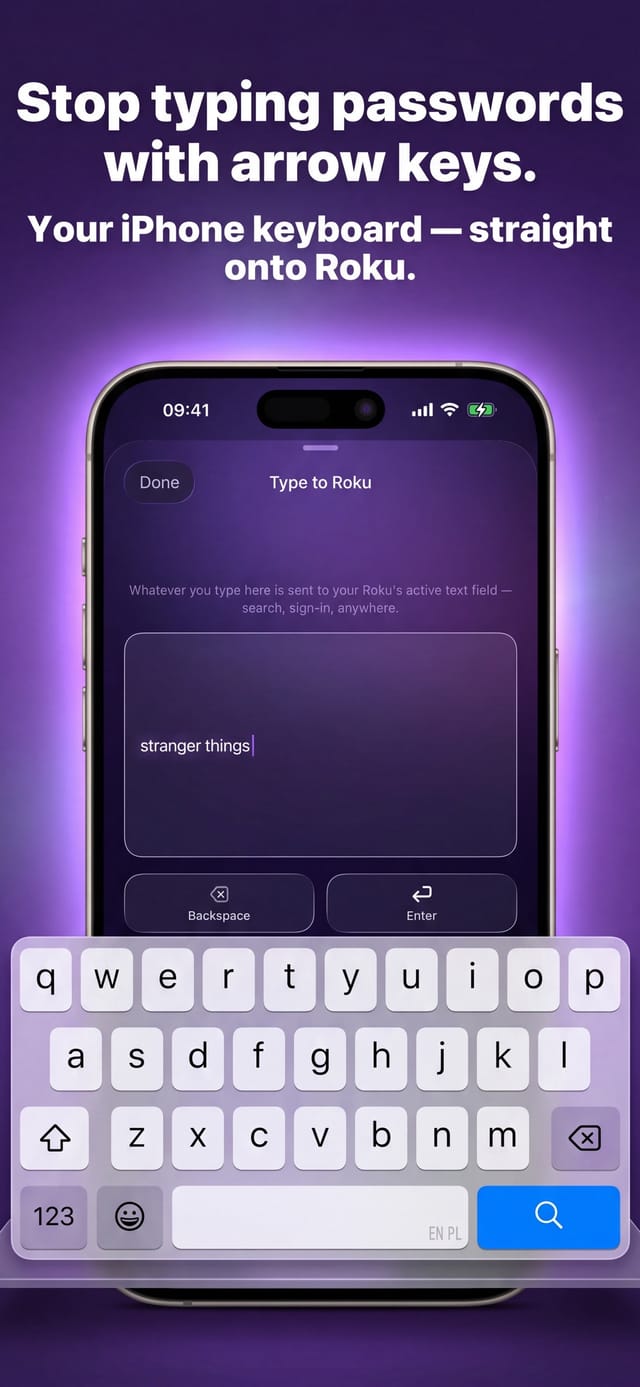
Auxility Remote for Roku TV — typing into a Roku search field from the iPhone keyboard

Free

Core controls

No pairing

Same Wi-Fi is enough

Which app this guide is for

This guide is for Auxility Remote for Roku TV, the Roku-only app by Auxility. It is not the universal app: My Universal TV Remote Control covers every TV brand in the house, Roku included, but keeps to the basics on Roku. Roku-deep features such as phone-keyboard typing into Roku search, voice search, Apple Watch control and the remote finder belong to the Roku app. For the universal angle, see Roku TV remote guides for the universal app and its free Roku remote app page.

Losing the remote feels terminal because the TV offers no obvious way in. It is not: a Roku is reachable over your home network whether or not the remote that set it up still exists, and the television itself almost always has physical controls hidden somewhere on the chassis. This guide covers the immediate fix, then the two ways of making the lost remote announce itself.

Diagnosis

No remote in the house: your options, ranked

Four routes back to a working television. The first works in about a minute; the rest depend on what hardware you own.

RouteWhat you needWhat it gets you
Control from your iPhoneThe Roku powered on and joined to your Wi-Fi, and a phone on that same network.The complete button set immediately: D-Pad, OK, Home, Back, volume, mute, power, playback and typing. No pairing code and no physical remote involved.
Trigger the remote finder from the appA remote with a built-in speaker — look for small speaker holes on its back.The remote plays a sound so you can follow it to the sofa cushion. Remotes without a speaker cannot be found this way.
Use the finder button on the playerA Roku Ultra, which carries a physical lost-remote-finder button on the top or side.The same chime, triggered at the device. Useful when the phone is also missing.
Use the panel buttons on the TVA Roku TV whose chassis buttons you can locate.On most layouts the panel button opens the Inputs menu, and Find Remote sits in that menu. Some Select Series TVs have only a power button and cannot do this.

Step by step

How to fix: Lost Roku Remote

  1. Step 1

    Check the Roku is still awake and online

    The app reaches the Roku across your network, so the device needs to be powered and joined to Wi-Fi. If the screen shows the Roku home screen or any app, you are fine. A television switched off at the wall has to be woken by its own panel button first.

  2. Step 2

    Open Auxility Remote on the same network

    Launch the app with your iPhone on the network the Roku uses. It scans the local network and lists every Roku that answers, showing each by the name set in that device's own system settings.

  3. Step 3

    Tap your Roku — there is no code to enter

    Select the device from the list. Roku control needs no pairing, which is precisely why a lost remote is not a lockout: the app never needed the old remote to establish anything. The D-Pad, OK, Home and Back go live at once.

  4. Step 4

    Make the missing remote announce itself

    If the remote has a built-in speaker, trigger the finder from the app and it will play a sound for up to a minute. Press any button on the remote once you find it to silence it. On a Roku Ultra you can press the finder button on the player instead.

  5. Step 5

    Fall back to the TV panel buttons if the Roku is off

    Panel controls hide well. Check the bottom centre of the TV behind the status indicator light, or the back panel near the lower right or left corner, and feel along the top, bottom and side edges if nothing is visible.

Why a lost remote is not a lockout

The physical remote and a phone reach the Roku by completely different roads. The remote either shines infrared at the device or holds its own wireless link to it. A phone sends the command across your home network to the device's address. Neither road depends on the other, so a remote that has vanished, broken or run flat takes nothing away from the network route.

This is also why there is no pairing code to recover. Some remotes have to be paired to a player; the network path has no equivalent step. The app finds the device, you tap it, and every key works. Nothing about the missing remote was ever holding a credential the app would need.

Finding a remote that has a speaker in it

Roku builds a remote finder into the platform, but it only works if the remote can make a noise. Turn yours over — if you can see small speaker holes on the back, it can be found. If the back is solid, the finder will appear to do nothing, and that is a hardware limitation rather than a fault.

The chime plays for up to about a minute, which is usually long enough to work through the sofa. Pressing any button on the remote stops it. On a Roku TV you can also reach this through the on-screen settings under Remotes and devices, where the finder sound itself can be changed if the default one is easy to miss.

The panel buttons nobody can ever find

Roku TVs do not have a standard control layout, because Roku does not build most of them. Roku itself documents four different arrangements: a single button, a row of three where the middle one is the important one, a small joystick you nudge left and right, and a column of labelled buttons with a dedicated INPUT key. On the first four layouts the button opens the Inputs menu, and Find Remote is an entry inside it.

Where the buttons physically live is equally unstandardised. Roku's own advice is to check the bottom centre behind the status indicator light, or the back panel near the lower right or left side, and otherwise to feel along the edges. Some Roku Select Series televisions have only a power button and no control cluster at all, in which case this route simply does not exist and the network route is the answer.

What each Roku offers when the remote is gone

  • Roku TV (TCL, Hisense, onn., Philips, RCA, Sharp, Element, JVC, Westinghouse and others)

    Best equipped. Panel buttons usually open the Inputs menu with Find Remote inside it, and the app can drive volume and power directly because the TV owns its own speakers and panel.

  • Roku Pro Series TV

    Has a dedicated button shaped like a Roku remote on the right side of the TV, above the power button. Pressing it triggers the finder directly rather than routing through the Inputs menu.

  • Roku Ultra

    Carries a physical lost-remote-finder button on the top or side of the player. This is the only Roku form factor with a finder button on the device itself.

  • Roku Streaming Stick and Roku Express

    No panel buttons and no finder button — a stick has nowhere to put them. The network route is effectively the only route, which makes the app the whole answer for these devices.

Where a phone cannot replace the remote

A phone can only reach a Roku that is powered on and listening on your network. If the television is switched off at the wall or fully powered down, something physical has to wake it — a panel button, or on some Roku TVs a network wake, which is a PRO feature and only works on devices that advertise support for it. Streaming sticks have no wake radio at all when they are off. The remote finder also depends on the remote containing a speaker: if yours has no speaker holes on the back, no app and no button on the player can make it chirp.
Technical reference

Working without the remote: the technical picture

What the app relies on to take over, and what the two hardware finder routes actually require.

Technical detail for this guide. You never need any of it to use the app; it is published so the page can be checked against the real behaviour of the device.
Detail Value
Why no pairing is needed Control runs over Roku ECP — an HTTP command channel on port 8060. It is addressed to the device, not bound to a paired accessory, so there is no credential the lost remote could have taken with it.
Finding the device SSDP M-SEARCH multicast to 239.255.255.250:1900 with ST: roku:ecp, then a broader ssdp:all pass; a /24 ECP subnet sweep runs only if multicast returns nothing.
Remote finder command The ECP FindRemote key. The device reports whether it supports it, and the app only offers the control when the device says yes rather than firing a key that will be ignored.
Finder hardware requirement The remote must contain a speaker — visible as small holes on its back. Sound plays for up to 60 seconds; any button press on the remote stops it.
On-device finder button Roku Ultra only, located on the top or side of the player. Roku does not publish which Ultra generations carry it, so check your unit rather than assuming.
Roku TV panel layouts Four documented arrangements: single button, three-button (use the middle), joystick (nudge left or right), and a labelled column with an INPUT key. Some Select Series TVs have a power button only.
Panel button placement Not standardised. Roku suggests the bottom centre behind the status indicator LED, or the back panel near the lower right or left side.

Compatibility: Every Roku reachable on the local network: Roku TVs (TCL, Hisense, onn., Philips, RCA, Sharp, Element, JVC, Westinghouse), Streaming Stick, Express, Ultra, Streambar.

Frequently asked questions

Lost Roku Remote: questions people ask

Can I use my Roku if I have completely lost the original remote?

Yes. The app never needed the physical remote to work. As long as the Roku is powered on and on your Wi-Fi, Auxility Remote finds it and takes over every key — directional pad, OK, Home, Back, volume, mute, power and the playback row — with no pairing code to recover.

How do I make my lost Roku remote beep?

Trigger the remote finder from the app, or press the finder button on a Roku Ultra. The remote plays a sound for up to a minute and any button press stops it. This only works if the remote has a built-in speaker: check the back for small speaker holes before spending time on it.

Where are the buttons on a Roku TV itself?

There is no single answer, because Roku does not make most Roku TVs. Check the bottom centre behind the status indicator light and the back panel near the lower right or left corner, and feel along the edges if nothing is visible. Some Roku Select Series sets have only a power button.

My Roku was set up with the remote I have lost. Does that matter?

No. Once a Roku is on your network it stays reachable over that network regardless of which remote configured it. There is no ownership or pairing record tying control to the original remote, which is why the app connects without any recovery step.

Can the app turn the TV on if it is completely switched off?

Only sometimes. Waking a sleeping Roku TV over the network is a PRO feature and works only on devices that advertise support for it. Streaming sticks have no radio listening while powered off, so those need the television or a physical button to come back to life.

More Roku app guides

All Roku app guides → · More on roku.auxility.ca →

Free download

Take control of your Roku in seconds.

Auxility Remote replaces the remote over Wi-Fi the moment your iPhone joins the same network. No pairing code, no account, no original remote needed.

Download Free App
No 2-tap paywalls · No credit card · Basic controls free forever

An independent app by Auxility, Inc. Not affiliated with, endorsed by, or sponsored by Roku, Inc. Roku is a trademark of Roku, Inc., used only to indicate device compatibility.