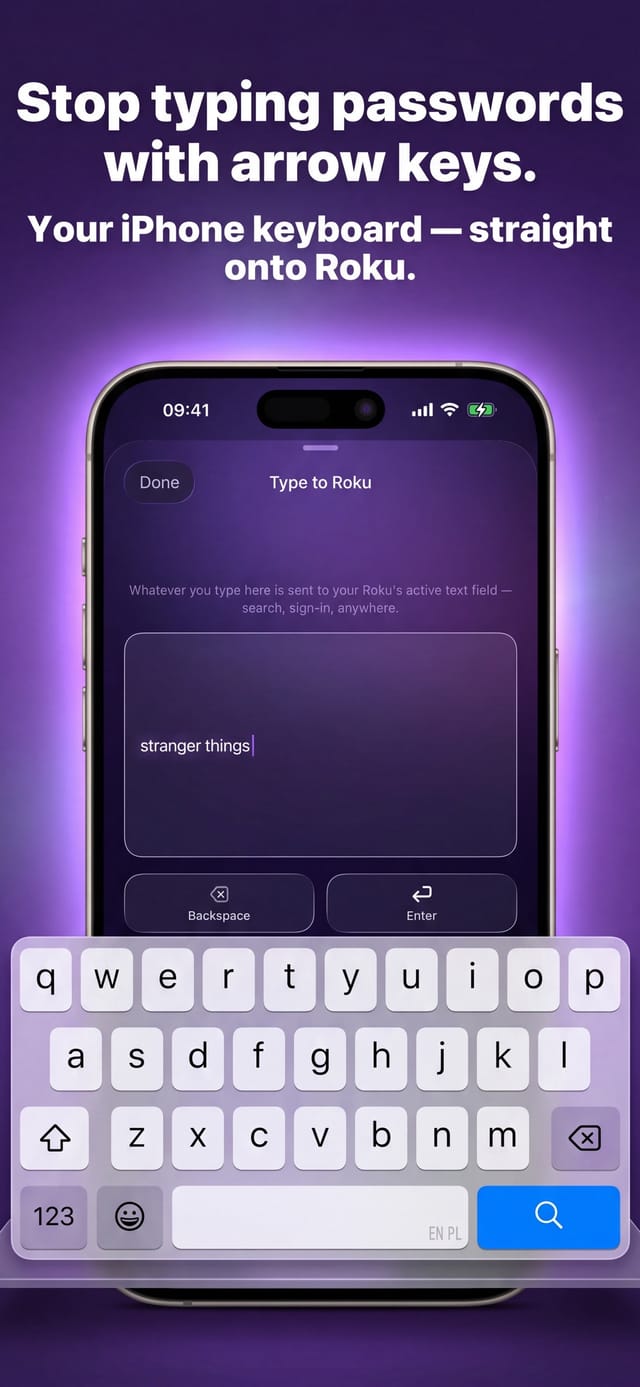
Your iPhone is already the Roku keyboard you are missing. Tap the keyboard icon in Auxility Remote and everything you type is delivered to the focused text field on the TV over Wi-Fi, letter by letter, as you go — searches, Wi-Fi passwords, channel logins. Typing is part of the free tier, needs no pairing and no code, and mistakes are fixable: delete on the phone removes the character on the screen.
Passwords, searches and logins take forty presses on a D-Pad and seconds on a phone. The keyboard is a free feature of Auxility Remote — open it and type.
Download Free App
Free
Core controls
No pairing
Same Wi-Fi is enough
Which app this guide is for
This guide is for Auxility Remote for Roku TV, the Roku-only app by Auxility. It is not the universal app: My Universal TV Remote Control covers every TV brand in the house, Roku included, but keeps to the basics on Roku. Roku-deep features such as phone-keyboard typing into Roku search, voice search, Apple Watch control and the remote finder belong to the Roku app. For the universal angle, see Roku TV remote guides for the universal app and its free Roku remote app page.
Entering the word "documentary" with a directional pad means walking an on-screen grid for roughly forty presses; a Wi-Fi password with mixed case and symbols is worse, because the grid keeps switching layers. This guide covers how phone typing reaches the TV, which text fields accept it, why two famous channel apps are the exception, and what the Apple Watch adds when the phone is in another room.
Diagnosis
Remote text input lands wherever the Roku exposes a focused text field. The behaviour differs by screen, and knowing which one you are on explains what you see.
| Screen on the TV | What phone typing does | Why |
|---|---|---|
| Roku Search | Every letter appears as you type it, results narrow live | The system search field accepts remote text input directly. |
| Wi-Fi password entry, PIN and login screens of the Roku OS itself | Full typing incl. mixed case and symbols | System fields are standard text targets; the grid keyboard on screen is just their fallback. |
| Most channel apps' search and login fields | Typing lands normally | Channels that use the platform text field inherit remote input for free. |
| YouTube and Netflix login/search | Letters may be ignored or behave oddly | These two draw their own on-screen keyboards, which do not listen to remote text input; use the D-Pad there or log in via the channel's web activation flow. |
| A screen with no focused text field | Nothing happens | There is no target: typing needs a field with focus, the same rule the physical remote follows. |
Step by step
Open Auxility Remote on the same Wi-Fi network as the TV and pick your device from the list. The keyboard sends text to whichever Roku is selected, so this is the one prerequisite.
Navigate to the search box or password field with the D-Pad, exactly as you would before typing on the TV grid. A blinking cursor on screen means the field is ready to receive.
The standard iPhone keyboard slides up. Each character travels to the TV the moment you press it, so you watch the field fill as you type — no send button, no batch paste.
Delete on the iPhone removes the last character on the TV. If the field looks out of sync, clear it on the TV once and retype — the connection itself does not reorder characters.
Each keypress is delivered over your home network as its own remote command — the same channel the physical remote uses, which is why nothing needs pairing. Accented and non-Latin characters survive the trip intact, so a French password or a Ukrainian search phrase types as written.
Because delivery is per character, the TV shows your text growing live rather than receiving it in one paste, and whatever autocomplete you use on the iPhone works: the TV only ever sees the final characters.
Typing is the feature you reach for when the physical remote is lost or the batteries are dead, and locking it would make the app useless at exactly the moment people install it. So the keyboard ships in the free tier alongside the D-Pad.
Voice search, casting and screen mirroring are the PRO extras; if you never buy them, the keyboard keeps working.
The Watch app carries the same text route: type on the small keyboard or dictate, and the words land in the focused field on the TV.
When your iPhone is nearby the Watch relays through it; when it is not, the Watch talks to the Roku over Wi-Fi directly — useful when the phone is charging in another room and the TV is asking for a password.
Roku TV (TCL, Hisense, Sharp, onn and other licensees)
System fields — search, network passwords, store logins — all accept phone typing. Panel brand makes no difference: the text route is part of Roku OS, not of the television.
Roku Streaming Stick and Express
Identical behaviour. The stick owns the text field, so even a hotel TV in HDMI mode takes your typing once the stick is connected to Wi-Fi.
Roku Ultra and Streambar
Same text route. On models whose own remote has no keyboard shortcut, the phone is the only way to type at all without the on-screen grid.
Apple Watch
Both dictation and the scribble keyboard reach the same field the iPhone does; the Watch route works with or without the phone in range.
It cannot type into a field that does not accept remote text input: YouTube and Netflix draw their own on-screen keyboards, so phone typing is ignored there and the honest route is the D-Pad or the channel's web-based sign-in. It also cannot focus a field for you — you still navigate to the search box first, the same as with the physical remote. And it types text; it does not paste files, emoji reliability depends on what the focused app accepts.
Technical reference
How remote text input is delivered and where its boundaries are.
| Detail | Value |
|---|---|
| Delivery | Character by character as ECP Lit_<char> keypresses over the local network; each character is percent-encoded per UTF-8, so accents and non-Latin scripts arrive intact. |
| Correction | Delete maps to the ECP Backspace keypress, removing the last character in the focused field. |
| Tier | Free. Keyboard typing ships in the free tier; voice search is the PRO feature built on the same delivery route. |
| Known exception | YouTube (channel id 837) and Netflix (channel id 12) render custom keyboards that ignore remote text input; the confirm key there types a letter instead of submitting. |
| Compatibility | Every Roku OS device on the same Wi-Fi: Roku TV panels from TCL, Hisense, Sharp and onn, Streaming Stick, Express, Ultra, Streambar. |
| Latency | One keypress per character means a long paste is not instant; typing speed on the phone is the practical ceiling, and the field fills visibly as you go. |
Compatibility: Every Roku OS device on the same Wi-Fi: Roku TV panels from TCL, Hisense, Sharp and onn., Streaming Stick, Express, Ultra and Streambar — the text route belongs to Roku OS, not to the panel brand.
Frequently asked questions
Free. Typing is part of the free tier together with the D-Pad; the paid PRO tier adds voice search, casting and mirroring. You can type into searches and passwords without ever seeing the paywall.
Those two apps draw their own on-screen keyboards instead of using the platform text field, and custom keyboards do not listen to remote text input. Use the D-Pad inside them, or their web activation flow for logins — every other system field takes phone typing normally.
No. Typing rides the same local-network channel as every other remote command, so the only requirements are the same Wi-Fi and a selected device. The first Roku connection may ask you to accept the app on the TV once; after that the keyboard is one tap away.
Yes — paste into the phone keyboard and the characters are delivered in order, one keypress each. A very long string takes a moment to land because delivery is per character, and you can watch the field fill on the TV.
Yes. The Watch talks to the Roku over Wi-Fi directly when the phone is out of range, and relays through the iPhone when it is near. Dictation and the Watch keyboard land in the same focused field.
More Roku app guides
Roku Remote Pairing
roku remote pairing
Reset Roku Remote
reset roku remote
Roku Secret Menu
roku secret menu
Remote Blinking Green
roku remote blinking green
Lost Roku Remote
lost roku remote
Roku Stick Overheating
roku stick overheating
Roku Private Listening
roku private listening
Control by Mobile Apps
roku control by mobile apps
Roku App Won't Connect
roku app won't connect
Roku Off Wi-Fi, No Remote
connect roku to wifi without remote
Free download
Auxility Remote replaces the remote over Wi-Fi the moment your iPhone joins the same network. No pairing code, no account, no original remote needed.
Download Free AppAn independent app by Auxility, Inc. Not affiliated with, endorsed by, or sponsored by Roku, Inc. Roku is a trademark of Roku, Inc., used only to indicate device compatibility.